ChatGPT can now make GIFs and remember your dog's face
The Images 2.6 update adds looping GIFs and saved reference photos you call back with an @ mention. Here is how they work and what to watch for.
In brief
ChatGPT's Images 2.6 update turns a prompt or a photo into a looping GIF
ChatGPT's Images 2.6 update can turn a prompt or a still photo into a looping GIF. It can also save a reference photo, like your dog, and reuse it in any chat when you type @ and its name. Be careful saving real faces.
OpenAI updated image creation in ChatGPT on November 4 with a new model, ChatGPT Images 2.6. In OpenAI's words:
Our new image generation model creates images faster and is better at preserving details across edits
Our new image generation model creates images faster and is better at preserving details across edits
That second part matters if you edit a picture several times. A character's outfit, for example, should now stay the same when you change the background. The update also brought two new features: GIFs and saved reference photos.
GIF creation is still rolling out, so it may not show up in your account yet.
How to make a GIF
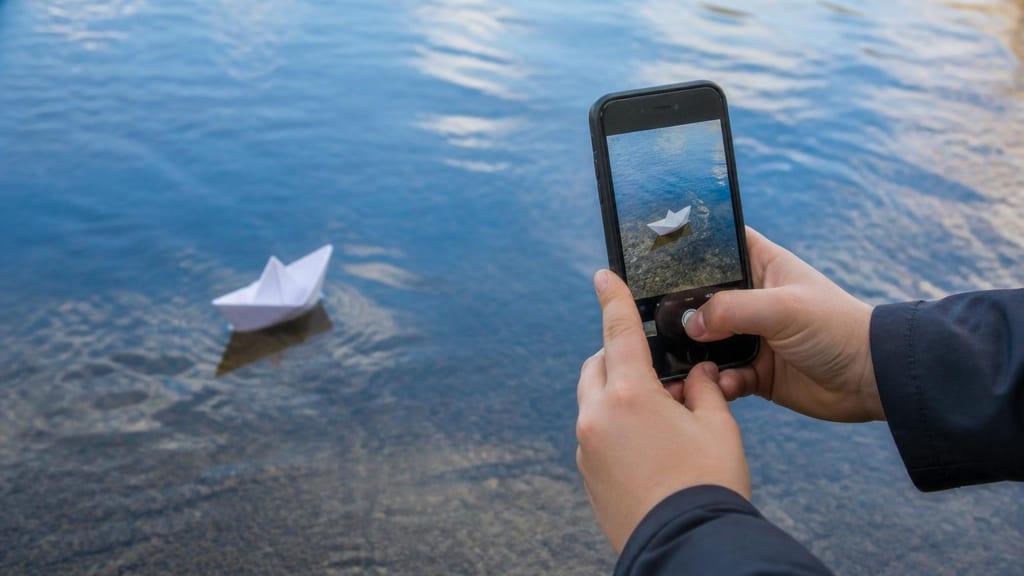
- Open a chat and ask for a looping GIF. Describe what should move, not just what should appear. OpenAI's own example: "Make a looping GIF of a paper boat bobbing on the water."
- To animate a picture you already have, upload the still image and ask ChatGPT to animate it. A child's drawing waving hello is a good first test.
- Want changes? Describe them in the same conversation.
- Open the finished GIF to change its playback speed, save it to your device or share it.
One limit: ChatGPT can't edit an animated GIF you upload. It only edits GIFs it made itself.
How to save a reference photo
This is the feature that changes daily habits. You no longer need to upload the same photo again and again.
- Upload a photo, such as your dog, your product or your logo, and ask ChatGPT to save it as a reference. ChatGPT may also offer to save one when you describe a photo.
- Choose a name for it and save it.
- In any later chat, type @ and the name. If you named your dog Pepper, try: "Make a watercolor portrait of @Pepper."
You can combine the two features too, for example a looping GIF of @Pepper chasing a ball.
Where your images go
Every image you create is saved automatically under Images on web and mobile, where you can copy, download or share it. To delete an image, you have to delete the conversation that created it.
Before you save photos of people
Think twice before saving photos of yourself, your children or friends. A saved photo stays in your account, and Notebookcheck notes that OpenAI's help page doesn't yet explain where saved references are managed or how to delete them. OpenAI says images made in ChatGPT carry Content Credentials and an invisible SynthID watermark, though GIFs are not listed separately. Use saved references for pets, products and drawings first, and keep real faces for when you know how to remove them.
Sources
Source: help.openai.com