Describe a widget in one sentence and Gemini builds it on your Android home screen
Google's November update brings Create My Widget to more Android phones. You type what you want on your home screen, and Gemini builds it from your Gmail, Calendar and Search. Here is how to use it and what to check first.
In brief
Google's Create My Widget lets Gemini build Android widgets from a short description
Google's Create My Widget turns a short description into an Android home-screen widget, built by Gemini from your Gmail, Calendar and Search. It is rolling out to Gemini Intelligence phones over the next few weeks.
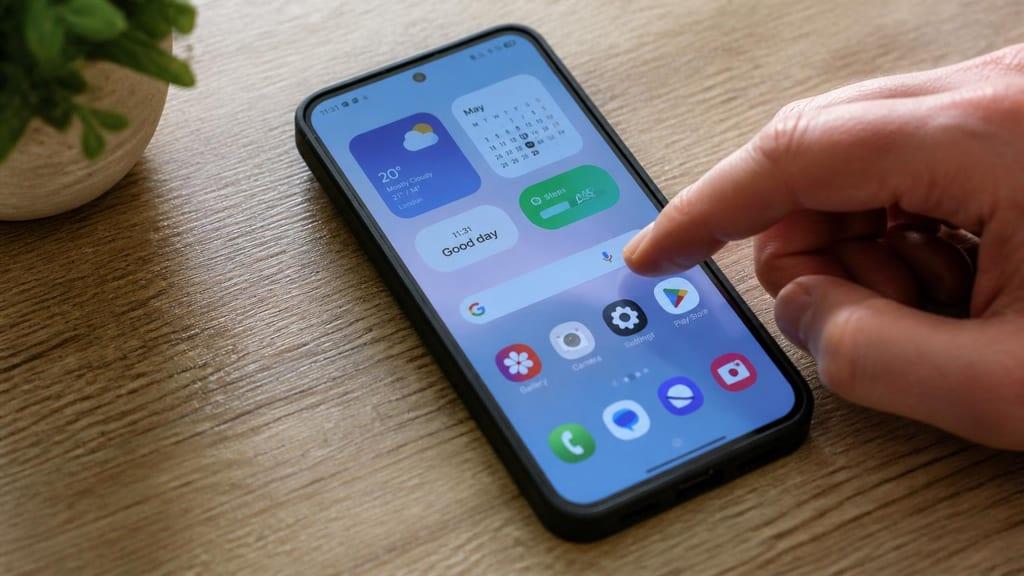
Google announced on November 10 that Create My Widget is rolling out over the next few weeks to Android phones with Gemini Intelligence. The idea: instead of hunting for a widget app, you describe the widget you want in your own words, and Gemini builds it. It can pull information from Gmail, Google Calendar and Google Search.
Google's own examples include a dashboard for an upcoming trip, a monthly spending tracker and a race-day countdown. In an earlier post it showed a meal-prep widget built from the prompt "Suggest three high-protein meal prep recipes every week."
Step 1: Check that your phone qualifies
Create My Widget is part of Gemini Intelligence, which Google is shipping on its most advanced Android phones. Google names the Pixel 11, Samsung's Galaxy Z Fold8 Ultra, Z Fold8, Z Flip8 and Galaxy S26 series, and, with this month's Pixel Drop, the Pixel 10, Pixel 10 Pro XL and Pixel 10 Pro Fold. Motorola's signature 27 joins later (US pre-orders open November 19). Google says availability depends on country and language, some features are for users 18 and over, and some need Android 17 or later.
Step 2: Update and open the app
Install the latest system update, then open the Create My Widget app. Google has listed it on the Play Store. If you can't find it yet, wait a few days: the rollout is gradual.
Step 3: Start from a template or write a prompt
The Play Store listing shows ready-made categories such as combo widgets, important dates, weather alerts and a daily brief. Pick one as a starting point, or type your own description. Be specific about what and when: "Show my next three calendar events and today's weather" works better than "a useful widget".
Step 4: Edit before you add
You can edit and refine the widget before it goes on your home screen. Check the details Gemini pulled in. Google's own fine print says to check responses, because the AI can get things wrong.
Step 5: Place it and resize it
Add the widget to your home screen and resize it like any other widget. Google says Create My Widget is also coming to the Pixel Watch in the next few weeks.
Two more things in the same update
- Device Assistance: ask your phone to free up storage, show which apps can see your location, or silence distractions while letting important calls through.
- Rambler: turns what you say into clean, organised text, now on the Pixel 10 family and the motorola signature 27.
A privacy note
A widget that reads Gmail and Calendar puts that information on your home screen, where anyone holding your phone can see it. Keep sensitive widgets (bank alerts, travel booking codes) off the screen if other people use your phone.
Sources
Source: blog.google