Gemini can now click and type through your Mac apps in a background window
Google's new computer use feature needs an Apple Silicon Mac and a paid Google AI plan, and for now works only in English in the US.
In brief
Google's Gemini can now do chores on your Mac: how to set it up in 5 steps
Gemini for Mac can now click, type and fill in forms in a hidden window while you work. It needs a paid Google AI plan and is US-only for now. Backups of edited files vanish after 24 hours.
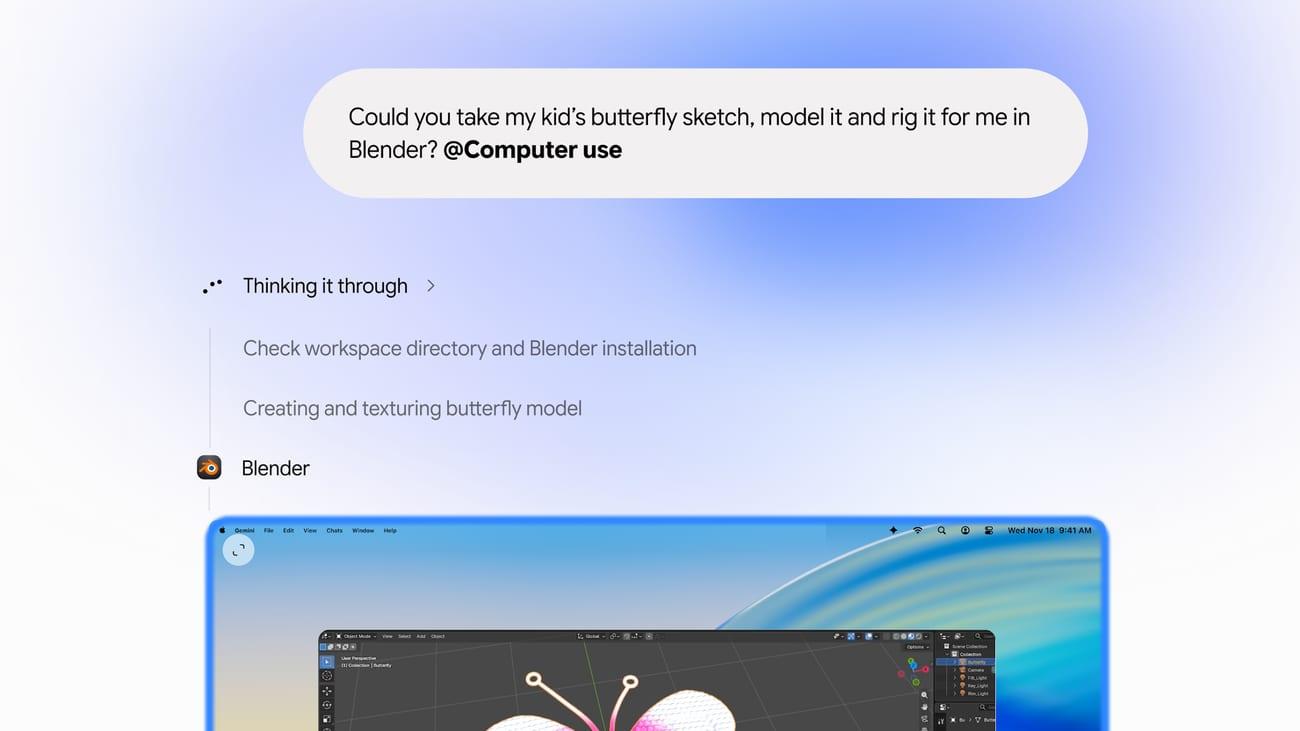
Google started rolling out computer use in the Gemini app for Mac on November 19, according to its blog. You describe a chore, and Gemini does the clicking, typing, menus and forms across your files, desktop apps and websites. It works in an isolated background window with a live preview in your chat, so your own screen and cursor stay free.
Google's examples: pulling weights and addresses out of PDFs to fill in shipping quotes, batch color-grading photos, building a Google Slides deck from live dashboards, and staging listings on resale sites from a folder of clothing photos.
Gemini is still learning and can make mistakes.
Before you start: who can use it
- An Apple Silicon Mac running macOS Sequoia 15.0 or later.
- A personal Google account, age 18+.
- A Google AI Plus, Pro or Ultra subscription, so free accounts are left out.
- For now it is rolling out in English in the US only.
5 steps
- Install the app. Download the Gemini app for Mac from gemini.google/mac and sign in.
- Choose what Gemini can touch. Google says you pick which apps Gemini can access. For files, the help page says Gemini can only see folders you add under Connected folders (click Add Mac folder; macOS may ask for permission first). Click Disconnect next to anything you added by mistake.
- Describe the task. Type what you want done as one clear request, for example "Rename the photos in this folder by date and put them into monthly folders."
- Watch and steer. Gemini shows a live preview. You can pause it at any time, and it is built to ask you to approve key actions before they happen.
- Check the result. When Gemini edits files it makes temporary backups you can restore, but Google says they are deleted when you start a new task, or after 24 hours. Check the work before moving on.
You can also start tasks on your Mac from your phone, if both devices use the same account and the same Wi-Fi or Bluetooth.
What not to hand it
Google's own help page is blunt: "Gemini is still learning and can make mistakes." It also warns that:
- Gemini can permanently delete files and share files with other people. It is designed to ask first, but check before you approve.
- You should not add files that are too sensitive to lose.
- You should not type sign-in details or payment details into the task thread.
- Adding a public cloud drive lets Gemini read, edit, share and delete what is in it.
Our take
This is useful for boring, repetitive work you can check at a glance. For anything with money, legal papers or files you can't replace, do it yourself or keep a backup. People outside the US will have to wait: Google has not given a date for other countries, languages, Windows or free accounts.
Sources
Source: blog.google