Gemini now talks to iPhone users through the car's screen on Apple CarPlay
Google has brought the Gemini app to Apple CarPlay worldwide, so iPhone users can hold hands-free Gemini Live conversations from the car's display. Here is what you need and how to start.
In brief
Google brings Gemini to Apple CarPlay worldwide, with hands-free voice chats in 4 steps
iPhone users can now talk to Gemini Live hands-free from the car's screen through Apple CarPlay, in every language Gemini Live supports. You need the latest app, microphone access and one Live chat on your phone first.
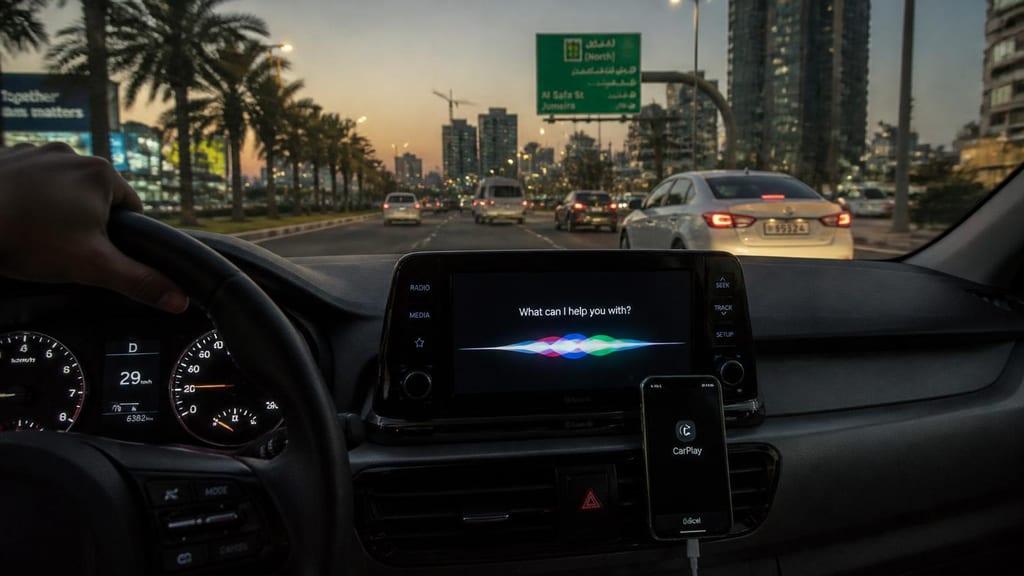
Android drivers already had it. Now iPhone users do too: on November 11 Google said the Gemini app is coming to Apple CarPlay, rolling out globally to all Gemini users on iOS in every language Gemini Live supports.
Gemini Live is Gemini's voice mode, where you talk back and forth instead of typing. On CarPlay it runs from the car's display, hands-free.
What you need
- An iPhone with the latest version of the Gemini app.
- Microphone permission turned on for Gemini.
- You must have used Gemini Live on your phone at least once.
- A car that supports Apple CarPlay.
4 steps to start
- Update the Gemini app from the App Store.
- Allow microphone access for Gemini in your iPhone settings if you haven't already.
- Open Gemini Live on your phone once (tap the Live button in the app and say something), so CarPlay can use it later.
- Connect your iPhone to your car and tap the Gemini icon on the CarPlay screen or side rail. You can start a new conversation or pick up a recent one.
Because the rollout is gradual, the icon may take a few days to appear on your car's screen.
What to ask on the road
Google suggests these uses:
- Plan your day: "What does my day look like?" Gemini can check your calendar and help you prepare for a meeting.
- Catch up on email: If you use Gmail and Google Calendar, you can ask for unread emails, a summary of a long thread, or help dictating a quick reply.
- Find places: Ask for a lunch spot near where you're heading, or the story behind a landmark.
- Practise out loud: Rehearse a presentation or ask Gemini to explain a topic in simple terms.
You can interrupt Gemini, change the subject or pause when you need to focus on the road. Conversations sync to the Gemini app on your iPhone, so notes and summaries are in your chat history when you park.
Limits to know
- Google says some personal features, including the Daily Brief, must be enabled first and are not available to users under 18, in the European Economic Area or in Nigeria.
- Email and calendar answers only work if your Google apps are connected to Gemini.
- Talking to an assistant still takes attention. Keep the hard questions for when you're parked.
Sources
Source: blog.google