ChatGPT can now turn your cat's photo into a looping GIF and remember the cat
Images 2.6 added two handy tricks: animated GIFs from a prompt or a photo, and saved reference photos you can call with @ in any later chat. Here is how to use them, and what they can't do.
In brief
ChatGPT's Images 2.6 makes animated GIFs and saves photos you can recall with @
ChatGPT's Images 2.6 update can animate a prompt or a photo into a looping GIF, and save a reference photo that you call with @ in any later chat. The feature is still rolling out, and it can't edit GIFs you upload.
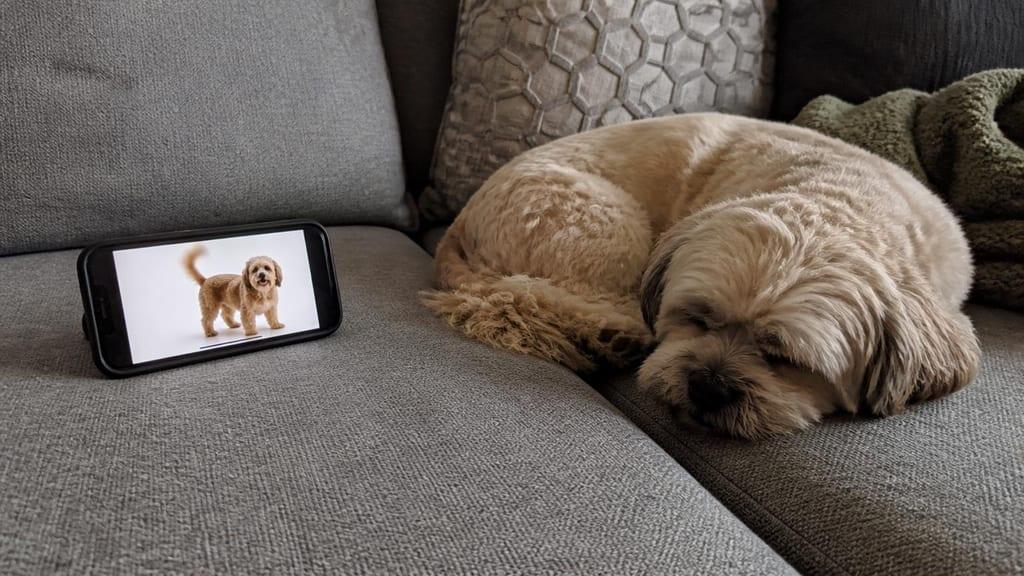
OpenAI's image update from November 4, ChatGPT Images 2.6, came with two features most people will actually use: making animated GIFs, and saving a photo so you never have to upload it again. Here is how each works, based on OpenAI's own help page.
Part 1: Make a GIF in 5 steps
- Open ChatGPT on the web or in the iOS or Android app and start a new chat.
- Ask for a looping GIF and say what should move. OpenAI's example: "Make a looping GIF of a paper boat bobbing on the water." Name one clear movement (a wave, a nod, snow falling) and say what should stay still.
- Or start from your own picture. Upload a still photo or a drawing and ask ChatGPT to animate it, for example "make the character wave".
- Fix it by talking. If something is off, describe the change in the same chat ("slower", "make the tail move too").
- Open the GIF to finish. From there you can change the playback speed, save it to your phone or computer, or share it.
One limit: ChatGPT can edit GIFs it made, but it can't edit an animated GIF you upload.
Part 2: Save a photo once, use it everywhere
- Upload the photo (your dog, a product, a drawn character) in any chat.
- Ask ChatGPT to save it as a reference and give it a short name. ChatGPT may also offer to save a photo when you describe it.
- Pick a name you'll remember, such as Pepper.
- In a later chat, type @ and the name. OpenAI's example: "Make a watercolor portrait of @Pepper."
- Combine it with GIFs, for example "Make a GIF of @Pepper chasing a ball."
A saved reference guides the picture; it doesn't promise a perfect copy, so check faces and logos before you post.
Two more tricks on the same page
- Templates: open Images in the sidebar, choose Templates, pick a category such as posters or logos, then fill in your details.
- Sketch (mobile): in the message box type @, choose Sketch, draw a rough shape, then describe the finished picture you want.
Before you start
- It's still rolling out. OpenAI says GIF creation "is rolling out", so the option may not be on your account yet. Its notes don't say which plans get it first.
- Think before saving faces. A saved reference stays with your account. A photo of a pet or a product is low risk; think twice about photos of children or of other people who haven't agreed.
- Your images live under Images. Every picture you make is saved there. To delete one, you delete the chat it was created in.
Sources
Source: help.openai.com